Spotlight Systems RAS Parallels Client Update
The following instructions will guide you through the process of updating your Parallels Client to the latest version available.
-
Open the Start menu - which contains all your apps, settings, and files - do either of the following:
a. On the left end of the taskbar, select the Start icon.
b. Press the Windows logo key on your keyboard.

-
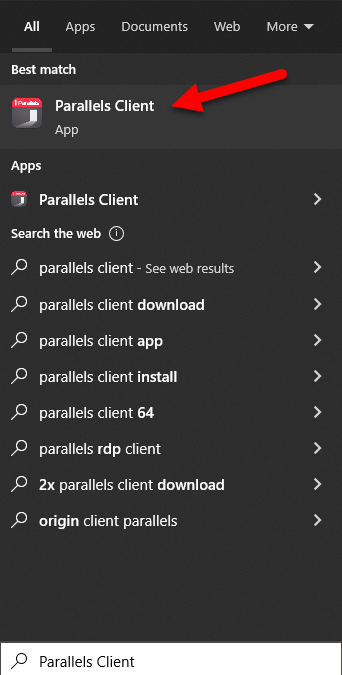
Type 'Parallels Client' and select the application.
Important
If you do not have the application on the machine where you use RAS then please send an email to support@spotlightsystems.com and ask for instructions on how to install the Parallels Client on to your machine. You may also request assistance and a support agent will be more than happy to assist you.
-
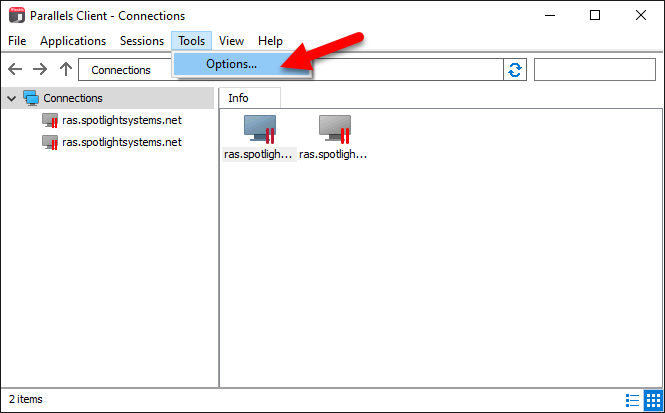
Once you have the application opened, select Tools > Options...
-
The next window may be displayed in one of two ways. I will show both.
a. Check the box that states 'Check for updates on startup' and then click 'Check for updates now...'
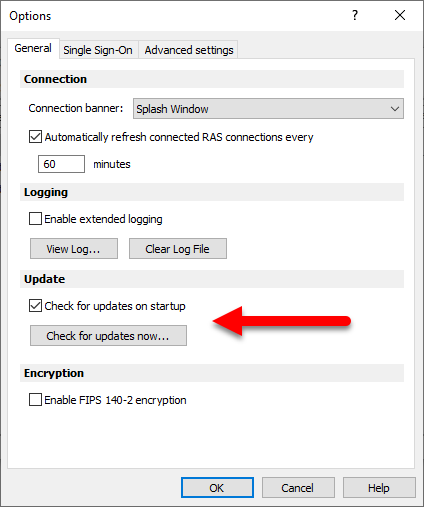
b. Select the 'Update' tab. Check the box that states 'Check for updates on startup' and then click 'Check for updates now...'

-
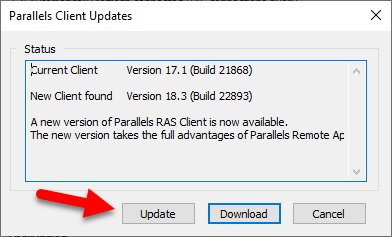
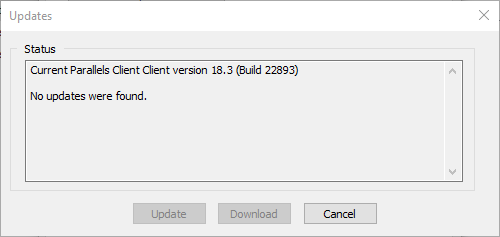
The Parallels Client Updates window will display your Current Client and a New Client Found, if any. If this is the case, click 'Update'
-
To verify that the update has taken place, close the application and reopen it. Navigate to the 'Check for updates now...' button (as shown above) and click it.
If you see that "No updates were found." then you have successfully updated your client.
Note
If you are not having any success or would like assistance, please don't hesitate to contact a Spotlght Support Agent to assist you. You can do this by sending an email to support@spotlightsystems.com
Contact
Ryan Welty ryan@spotlightsystems.com (346)202-4051
Taylor Graves taylor@spotlightsystems.com (346)202-4966
Nick Hardy nick@spotlightsystems.com (719)482-8719